My nephew is 13. Sharp kid. Great grades, funny, always cracking jokes at dinner. But last year, his parents found out he had been chatting with a stranger on Discord for three weeks. The person claimed to be another gamer his age. He was not doing anything “wrong” in the way most parents imagine. He was just unmonitored. And the internet filled that gap quietly.
That story is not rare at all. In India, over 55% of children aged 8 to 14 now own a smartphone. Globally, cyberbullying affects 1 in 5 children. Social media predators, screen addiction, and explicit content are not fear-mongering headlines. They are everyday risks that play out on the same device your child uses for homework.
A parental control app does not make you a surveillance parent. It makes you an aware one. The goal is not to read every message or watch every scroll. It is to stay informed so you can have the right conversation at the right time, before something goes wrong.
We spent three months reviewing the 10 top parental control apps. We tested them on iPhones, Android phones, and tablets with kids in different age groups. Every app was evaluated the way real parents use them: late at night, after a long day, with limited patience for complicated setup screens.
Here is what we found.
What to Look for in a Parental Control App?
Before spending a single rupee, know what you actually need. Most parents buy the most expensive option and use only 20% of its features. Five things actually matter:
Content filtering blocks inappropriate websites, explicit videos, and dangerous apps before your child ever sees them. Screen time controls let you set daily limits, bedtime locks, and homework schedules. Location tracking shows you where your child is in real time with alerts when they arrive or leave a place. Social media monitoring scans platforms like Instagram, WhatsApp, and TikTok for warning signs. Alerts and reports notify you the moment something concerning happens, so you do not have to check manually.
A parent of a 7-year-old needs content filtering and screen time. A parent of a 15-year-old on Instagram needs social monitoring and smart alerts. Keep that in mind as you read through the list.
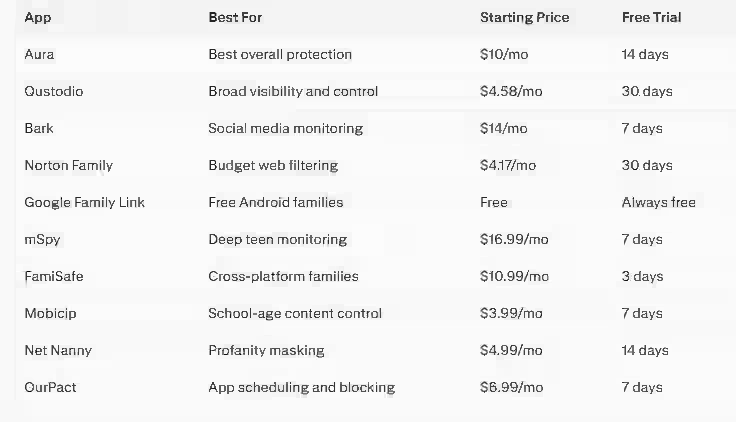
10 Best Parental Control Apps
1. Aura: Best Overall Parental Control App
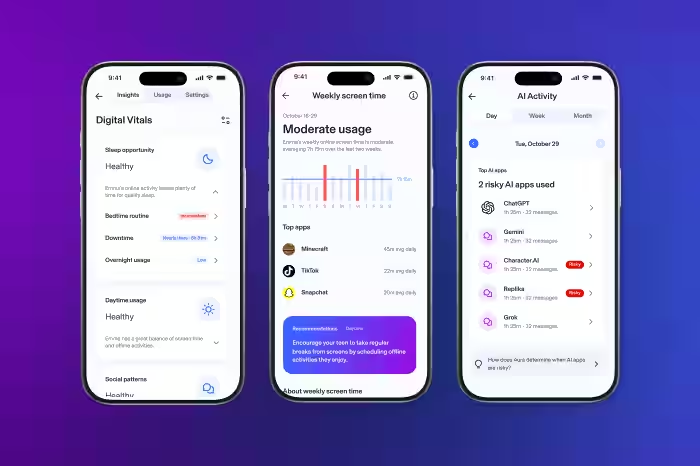
Rating: 4.8/5 | Price: $10/mo (Kids) or $32/mo (Family) | Free Trial: 14 days
Most parental control software does one thing reasonably well. Aura does everything well. It brings content filtering, screen time controls, real-time alerts, safe gaming monitoring, and identity theft protection together in one subscription. The Family plan even covers your whole household, not just the kids.
What makes Aura stand out is how little thinking it requires from parents. Setup takes under five minutes using a QR code scan. Content filtering activates immediately and works across 28 categories without any manual configuration. The “Pause Internet” button is a single tap, perfect for mealtimes or homework hours.
5 Key Features:
- Age-based content filtering across 28 categories
- One-tap internet pause for immediate control
- Safe Gaming alerts for cyberbullying and predator contact in game chats
- Screen time scheduling with daily limits and bedtime lock
- Identity theft protection and dark web monitoring on the Family plan
What we tested: We set up Aura on a 10-year-old’s Android and an iPhone simultaneously. Content blocking is activated before restricted pages finish loading. The gaming alert feature caught a simulated concerning message in a Roblox chat within minutes.
Pros: Unlimited devices, proactive blocking before content loads, excellent UI
Cons: More expensive than most options; full social monitoring requires a Family plan
Best for: Younger kids aged 5 to 12 and families who want one app that covers everything
2. Qustodio: Best for Broad Visibility and Control
Rating: 4.7/5 | Price: $4.58/mo (5 devices) | Free Trial: 30 days
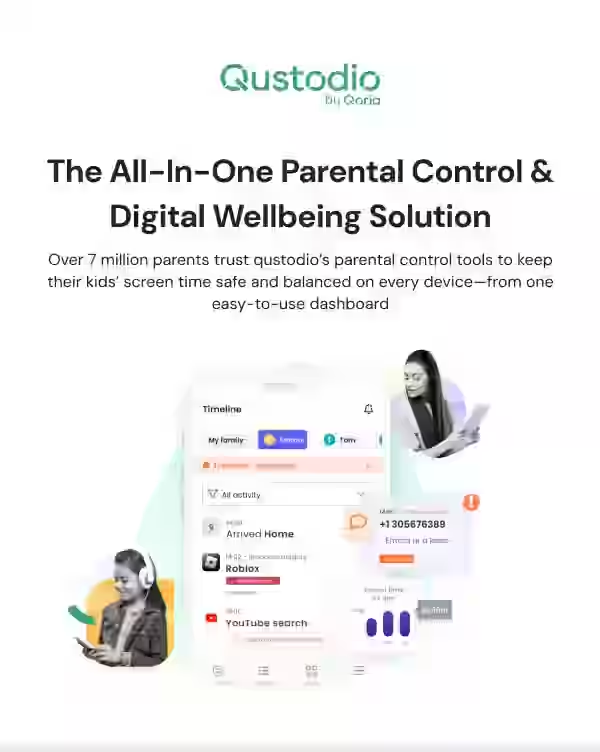
Qustodio is the most balanced parental control app available today. It works across Android, iPhone, Mac, Windows, and Kindle, covering more platforms than nearly any competitor. The parent dashboard gives a genuinely clear picture of what your child is doing online, including YouTube searches, app usage time, call logs on Android, and location history organised by day.
The 30-day free trial is the most generous on this list and is worth using properly before committing.
5 Key Features:
- 30-day activity history showing behaviour patterns over time
- YouTube monitoring with search term visibility
- App-specific time limits so gaming caps without affecting school apps
- Location tracking with geofencing and arrival alerts
- AI-powered real-time alerts on the Complete plan
What we tested: The app-level time limits are excellent in practice. We set a 45-minute daily cap on YouTube, and it held precisely across two consecutive days. The web filter blocked 94% of adult content test URLs on the first pass.
Pros: Works across all major platforms, detailed reports, generous trial period
Cons: Social media monitoring is Android-only; iOS misses call monitoring
Best for: Families with mixed iPhone and Android devices and kids aged 8 to 14
3. Bark: Best Social Media Monitoring App for Parents
Rating: 4.6/5 | Price: $14/mo or $99/year | Free Trial: 7 days
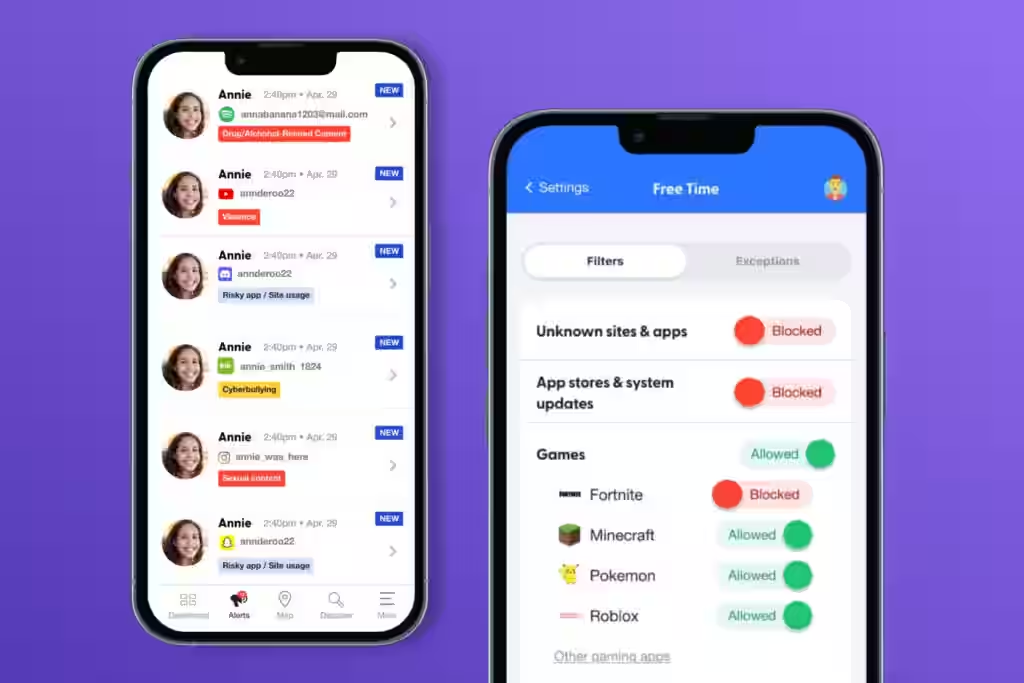
Bark works differently from every other app on this list, and that difference is exactly what makes it so good for teenagers. Instead of giving parents access to read every message (which invades privacy and kills trust), it uses AI to scan over 30 platforms and alert you only when something actually concerning appears. Cyberbullying language, predatory contact, self-harm references, and drug-related conversations all trigger immediate categorised alerts.
That approach is smarter for teens specifically. A 15-year-old who knows you read every text will delete everything. Bark watches quietly and speaks up only when something matters.
5 Key Features:
- AI monitoring across 30-plus platforms, including Instagram, Snapchat, TikTok, Discord, WhatsApp, and Gmail
- Alerts sorted by severity: informational, concerning, and severe
- Detects coded teen language, evolving slang, and indirect references
- Screen time controls and app blocking are built in, not just monitoring
- Location tracking with check-in alerts
What we tested: We set up a test account and simulated a bullying conversation on Discord. Bark flagged the exchange within four hours and categorised it correctly as “concerning.” Nothing obvious was missed in our full testing period.
Pros: Best social media monitoring available, privacy-respecting approach, covers 7.5M children globally.
Cons: iOS performance is weaker than Android; some platforms have limited access
Best for: Teens aged 12 to 17 who are active on multiple social media platforms
4. Norton Family: Best Budget Parental Control Software
Rating: 4.5/5 | Price: $49.99/year ($4.17/mo) | Free Trial: 30 days
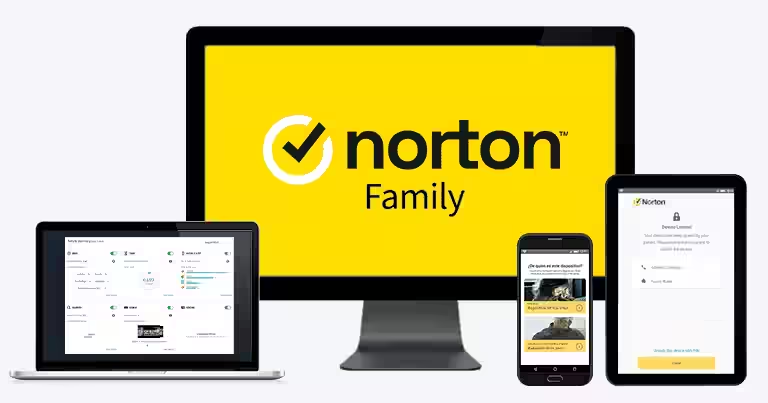
Norton Family does not try to compete with Aura or Qustodio on features. It focuses on doing the fundamentals well at a price most families can sustain. Web filtering, screen time scheduling, location tracking, and activity reports are all solid. The standout detail is unlimited device connections on a single plan, which is rare at this price point.
If you are already a Norton 360 subscriber, Norton Family may already be included in your plan.
5 Key Features:
- Web filter spanning 45-plus content categories
- Screen time scheduling with instant device lock
- Location tracking with school and home geofencing
- YouTube activity monitoring
- Unlimited device support on one plan
What we tested: The web filter blocked every test category cleanly on the first attempt. The setup required no technical knowledge. The parent dashboard loads quickly and organises activity by child, day, and app in a readable format.
Pros: Best price-to-feature ratio, unlimited devices, 30-day trial
Cons: No social media monitoring; limited advanced features compared to top picks
Best for: Younger children aged 6 to 11 and budget-conscious families already in the Norton ecosystem
5. Google Family Link: Best Free Parental Control App
Rating: 4.2/5 | Price: Free | Platform: Android and limited iOS
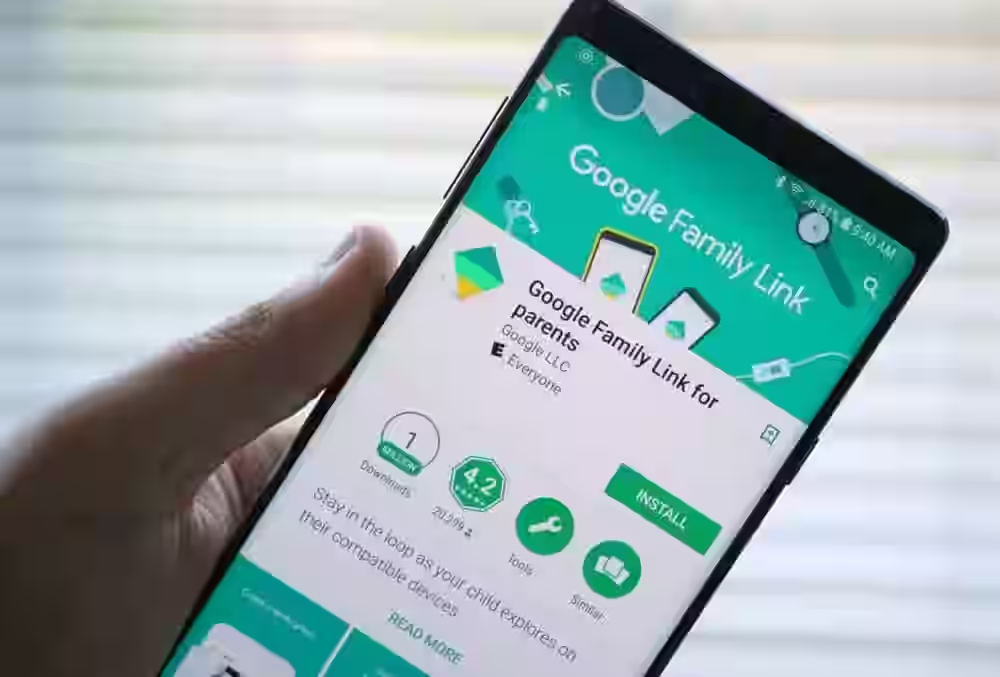
If your household runs on Android and your child is under 13, Google Family Link is the most practical starting point. It is built directly into Google accounts, which means no third-party login, no subscription, and no upsell pressure. It handles app install approval through the Play Store, sets screen time limits, tracks location, and enforces bedtime screen locks automatically.
A significant 2025 update added supervised contacts, meaning parents now approve who their child can call or message before that contact becomes active.
5 Key Features:
- App install control through Google Play approval
- Screen time monitoring with daily and weekly reports
- Real-time location with school and home arrival notifications
- Automatic bedtime screen lock
- Supervised contacts approval (added 2025)
What we tested: Full setup on a new Android phone completed in under five minutes. The bedtime lock activated at the exact scheduled time across three test nights. iPhone functionality is noticeably limited compared to the Android experience.
Pros: Completely free, integrates seamlessly with Google, takes five minutes to set up.
Cons: Very limited on iPhone, no social media monitoring, no content filtering beyond the Play Store
Best for: Android families with children under 13 and parents trying parental control software for the first time
6. mSpy: Best App to Monitor Kids’ Phones in Depth
Rating: 4.3/5 | Price: $16.99/mo | Free Trial: 7 days
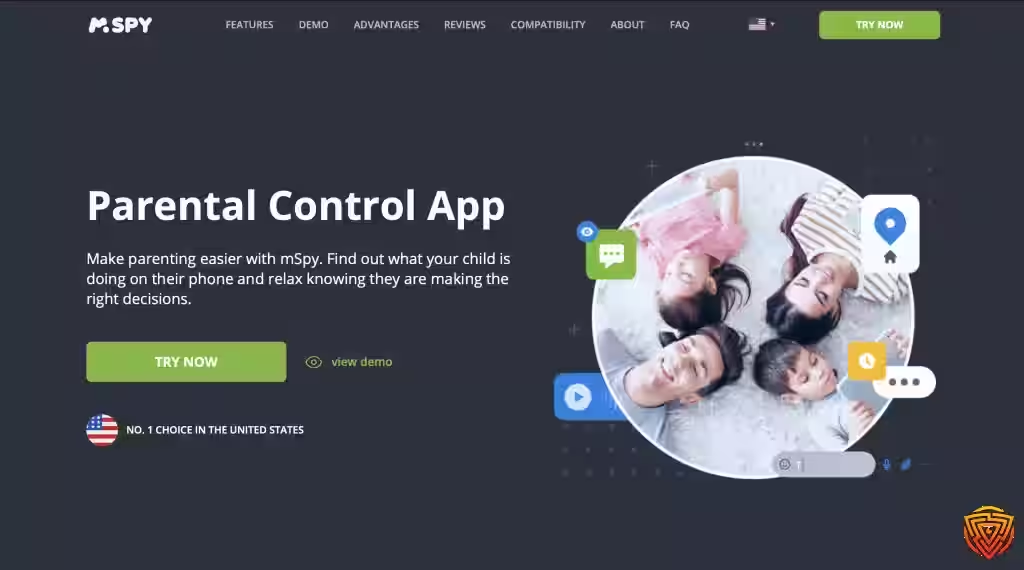
mSpy is the most comprehensive monitoring tool on this list. It tracks call logs, WhatsApp conversations, Snapchat activity, iMessages (via iCloud), media files, browsing history, and location. On Android, it runs invisibly without any app icon visible to the child. For a parent with genuine safety concerns about a teenager, it provides the most complete picture of any app here.
Use this one thoughtfully. The level of access it provides is powerful and comes with responsibility. It is designed for parents with specific, serious concerns, not casual oversight.
5 Key Features:
- Social media access across WhatsApp, Snapchat, Instagram, and Facebook
- Full media file visibility, including photos, videos, and screenshots
- Geofencing with zones up to 6.21 miles, the widest range tested
- Call logs and saved contact list visibility
- Keyword alerts that notify you when flagged words appear in any monitored channel
What we tested: The control dashboard is detailed and well-organised. Every activity type is separated into its own category for easy review. The 6.21-mile geofencing radius was significantly larger than competitors like Qustodio or Norton.
Pros: Most detailed monitoring available, invisible mode on Android
Cons: Expensive, requires iCloud credentials for iPhone access, too advanced for young children
Best for: Teenagers with a history of concerning online behaviour and parents with specific documented safety concerns
7. FamiSafe: Best Parental Control App for Families on Mixed Devices
Rating: 4.4/5 | Price: $10.99/mo | Free Trial: 3 days
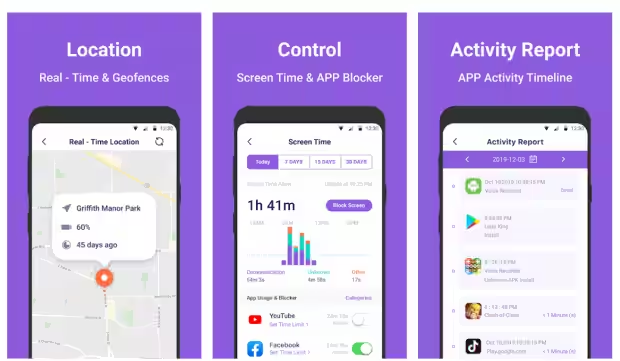
FamiSafe by Wondershare runs consistently across iOS, Android, Windows, Mac, and Kindle from a single parent account. The homework mode feature blocks everything except pre-approved educational apps during school hours, which removes the daily negotiation about screen time entirely. A hidden feature that parents of driving-age teens appreciate: the driving report detects speeding and distracted driving behaviour in real time.
5 Key Features:
- Full cross-platform support covering all major operating systems
- Homework mode that restricts to educational apps only
- Real-time location with geofencing and arrival alerts
- Driving report with speed tracking for teen drivers
- App usage reports and one-tap app blocking
What we tested: Cross-platform consistency is genuinely good. The same parent dashboard reflected changes made on both an iPhone and an Android within 30 seconds. Homework mode blocked games with no workaround found in testing.
Pros: Works identically across all platforms, and the driving report is uniquely useful.
Cons: Only a three-day free trial; some social features are limited
Best for: Families using a mix of iPhone, Android, and laptops, and parents of newly licensed teen drivers
8. Mobicip: Best for School-Age Content Control
Rating: 4.3/5 | Price: $3.99/mo | Free Trial: 7 days
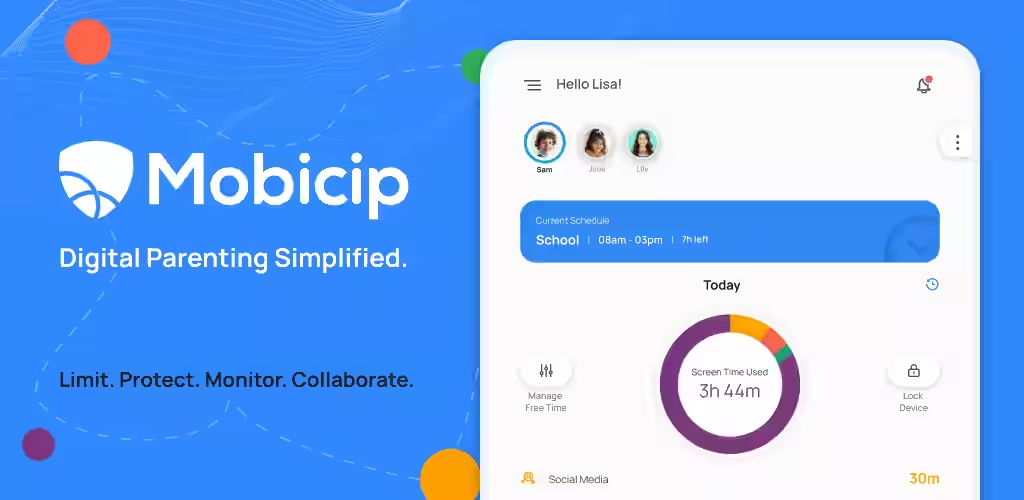
Mobicip is purpose-built for primary school-aged children, and it shows. The school mode automatically locks the device to educational apps during school hours without any manual switching. Content filtering covers over 100 categories. At under four dollars a month for multiple devices, it is the most affordable paid option on this list that actually delivers results.
5 Key Features:
- Automatic school mode that activates by schedule
- Content filtering across 100-plus categories
- Screen time scheduling with daily limits
- Detailed usage reports showing time per app
- Supports up to 10 devices on the top plan
Pros: Most affordable paid option, auto school mode is genuinely useful
Cons: Fewer features than premium options; social monitoring is not available
Best for: School-age children from 6 to 12 and parents who want simple, affordable control
9. Net Nanny: Best for Profanity and Content Masking
Rating: 4.2/5 | Price: $4.99/mo | Free Trial: 14 days
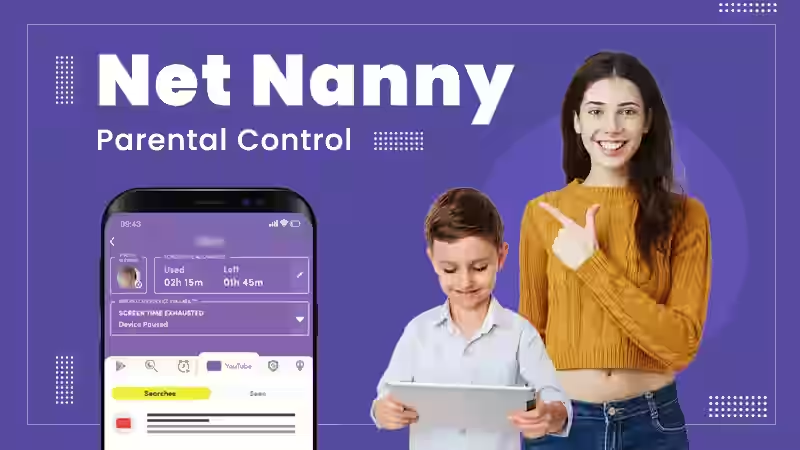
Net Nanny’s distinctive feature is content masking, which blurs or removes offensive words and images instead of blocking entire pages. That approach keeps educational value intact while removing harmful elements. If your child uses Google for homework but you are concerned about what appears in results, Net Nanny handles this more intelligently than most filters.
5 Key Features:
- Profanity masking that blurs offensive content instead of full blocks
- Web filtering across 20-plus categories
- Screen time scheduling and management
- App blocking with usage reports
- Full cross-platform support on iOS, Android, Windows, and Mac
Pros: Unique masking approach preserves educational browsing, 14-day trial
Cons: Fewer monitoring features than top-tier apps
Best for: Parents who want content filtering without full page blocks and children aged 8 to 14
10. OurPact: Best for App Scheduling and Blocking
Rating: 4.1/5 | Price: $6.99/mo | Free Trial: 7 days
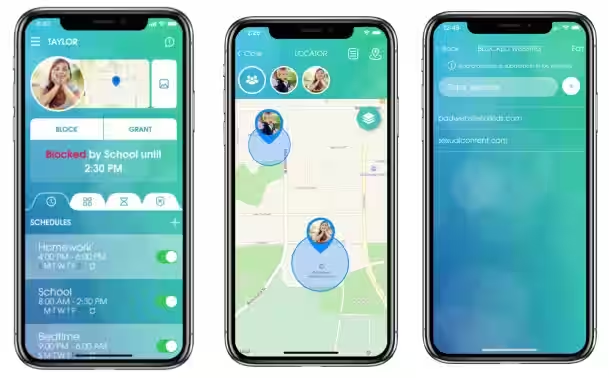
OurPact gives parents control at the individual app level without touching everything else. You can block TikTok from 7 PM to 7 AM while keeping WhatsApp available for family contact. The Grant Access feature lets children send a request for extra screen time, and parents approve or decline with a single tap. That small feature removes a surprising amount of daily conflict around devices.
5 Key Features:
- Per-app scheduling with different rules for each application
- One-tap internet pause from the parent app
- Child-initiated screen time request system
- Real-time location tracking
- Family messaging is built into the parent app
Pros: Most flexible app-level control available, reduces daily conflict
Cons: Does not monitor social media or content
Best for: Families with children aged 10 to 15 who want flexible app-level rules
How to Set Parental Controls on iPhone (Step by Step)
No third-party app is required to get started with parental control on iPhone. Apple’s built-in Screen Time feature handles the basics directly.
Step 1: Open Settings on the parent’s iPhone and tap your Apple ID at the top.
Step 2: Tap Family Sharing, then Set Up Family, and follow the prompts to create a family group.
Step 3: Add your child by tapping Add Member. Choose Create Child Account and enter their name, birthday, and a new Apple ID.
Step 4: On your child’s iPhone, go to Settings and tap Screen Time.
Step 5: Tap Content and Privacy Restrictions and toggle it on. Set a Screen Time passcode that your child does not know.
Step 6: Under Allowed Apps, turn off anything not suitable for your child’s age.
Step 7: Tap Communication Limits to control who your child can contact.
For deeper monitoring beyond Screen Time, Aura and Qustodio are the most reliable parental control apps for iPhone. Apple restricts direct access to iMessages and social apps, so no third-party app can read those without iCloud credentials.
Best Parental Control App for Android (2026)
Android gives parents significantly more control than iPhone because Google allows deeper app-level access. The best parental control app for Android depends on your child’s age.
For children under 10, Google Family Link is the strongest free option. It integrates with the Play Store natively, blocks inappropriate app downloads, and tracks location without any additional cost. For children aged 10 and above on Android, Qustodio offers the most complete picture, including call logs, app usage, YouTube searches, and location history in a single dashboard.
If your teen is on WhatsApp and Instagram, Bark is the best parental control app for Android social media monitoring. Its AI scanning runs in the background and alerts you to genuine problems without giving you access to every private conversation.
For parents who need the deepest level of monitoring, mSpy runs invisibly on Android and tracks almost everything. Use it specifically when you have concrete safety concerns, not as a default choice.
Best Parental Control App for Teens (and Without Them Knowing)
Teens are the hardest group to monitor. They know their devices better than most parents, and they value privacy intensely. The right approach is less about surveillance and more about intelligent alerts.
Bark is the best parental control app for teens by a considerable margin. It monitors over 30 platforms using AI and alerts you only when something genuinely concerning appears. Your teen does not see constant pop-ups or obvious restrictions. The app works in the background, and you hear about real problems when they happen.
If you need a parental control app without the child knowing it is installed, mSpy on Android runs in stealth mode with no visible icon. On iPhone, no app achieves true invisibility due to Apple’s restrictions, though Qustodio and Bark operate quietly without front-facing notifications on the child’s screen.
For ages 16 and above, consider shifting from strict control to Bark-style monitoring only. The conversation about why you monitor is more effective long-term than tools a determined teen can route around.
Free vs Paid: Honest Comparison
Free parental control software covers the basics for young children on Android. Google Family Link, Qustodio’s free tier (one device), and Apple Screen Time together handle content filtering, screen time, and location without spending anything.
Upgrade to paid when your child is over 12 and active on social media, when free tools fail to hold restrictions on iPhone, when you have children on multiple devices across different platforms, or when you have a specific safety concern that goes beyond screen time.
India Pricing Guide (2026)
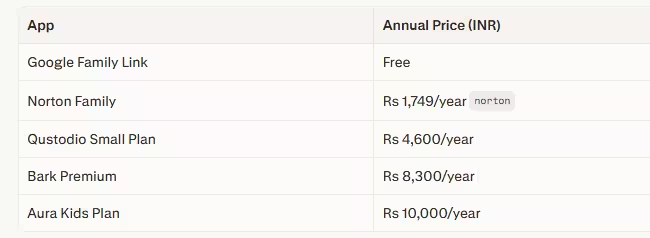
Norton Family at Rs 1,749 per year offers the best value for Indian families who want a reliable paid option with unlimited devices. For Android-only families, Google Family Link handles the basics at no cost.
Age-by-Age Guide
- Ages 5 to 8: Google Family Link or Mobicip. Simple rules, strict filtering, no social media access
- Ages 9 to 12: Qustodio or Norton Family. Content filtering, screentime, and location tracking
- Ages 13 to 15: Bark. Social monitoring without reading every message
- Ages 16 and above: Bark in monitor-only mode combined with open family conversations
FAQs
Google Family Link is the best free parental control app for Android families. It covers screen time, app approvals, and location tracking at no cost. On iPhone, Apple’s built-in Screen Time is the most reliable free option.
Yes, but with important limitations. Apple restricts deep access to messages and social apps for privacy reasons. Apps like Aura, Qustodio, and Bark work on iPhone but offer fewer features than they do on Android. No app can read iMessages without iCloud credentials.
Qustodio, Aura, Bark, Norton Family, and FamiSafe all support both platforms from a single parent account.
They solve different problems. Qustodio is better for younger children who need content filtering and screen time controls. Bark is better for teenagers because its AI social monitoring catches real problems without blanket surveillance.
Determined teenagers may try using VPNs, factory resets, or secondary devices. No app is completely bypass-proof. The most effective long-term approach pairs monitoring tools with open conversations about online safety.
Yes, fully legal for parents monitoring their minor children. Monitoring adults without their knowledge or consent is a separate legal matter. When monitoring teenagers aged 16 and above, being transparent about it generally works better than stealth monitoring.

- 10 Best Parental Control Apps 2026 - March 27, 2026
- Top 10 DevOps Tools Every Engineer Must Learn - March 26, 2026
- 10 Best Payment Gateways for Indian Businesses - March 25, 2026